1. Accessing the Production Dashboard 0:00
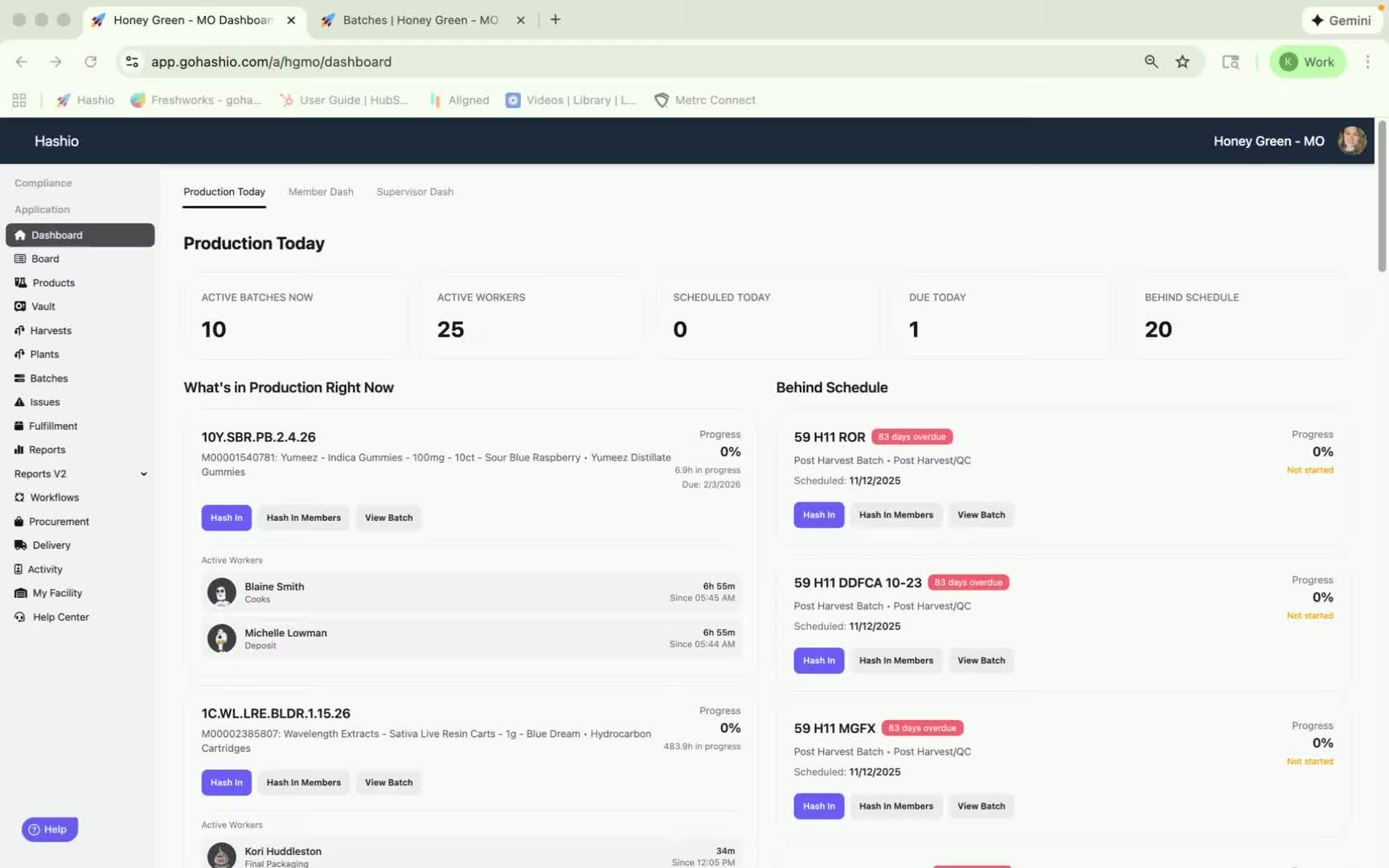
The production dashboard appears automatically upon logging into Hashio.
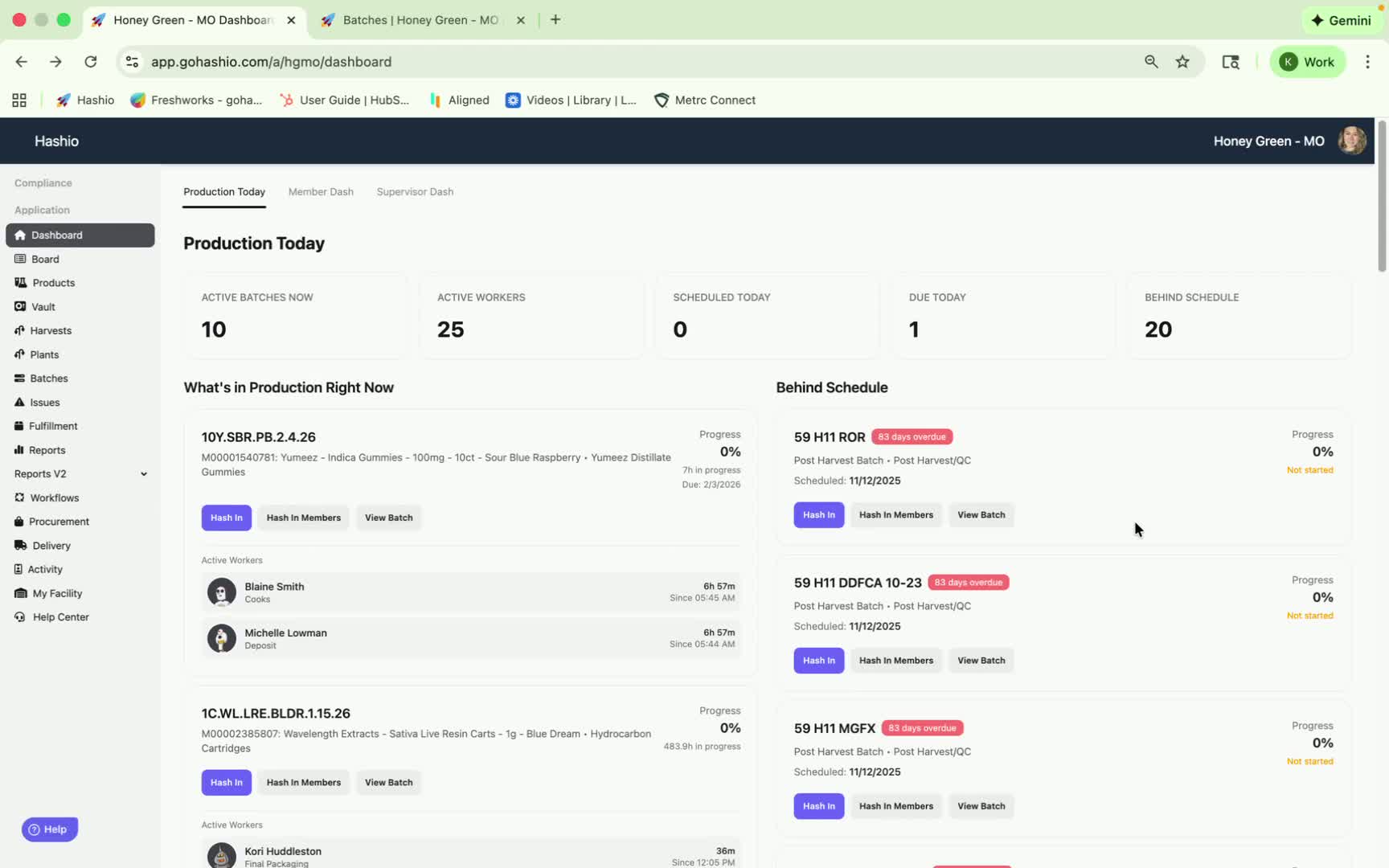
Alternatively, navigate to it by selecting 'Dashboard' and then 'Production Today'.
2. Overview of Active Batches 0:14
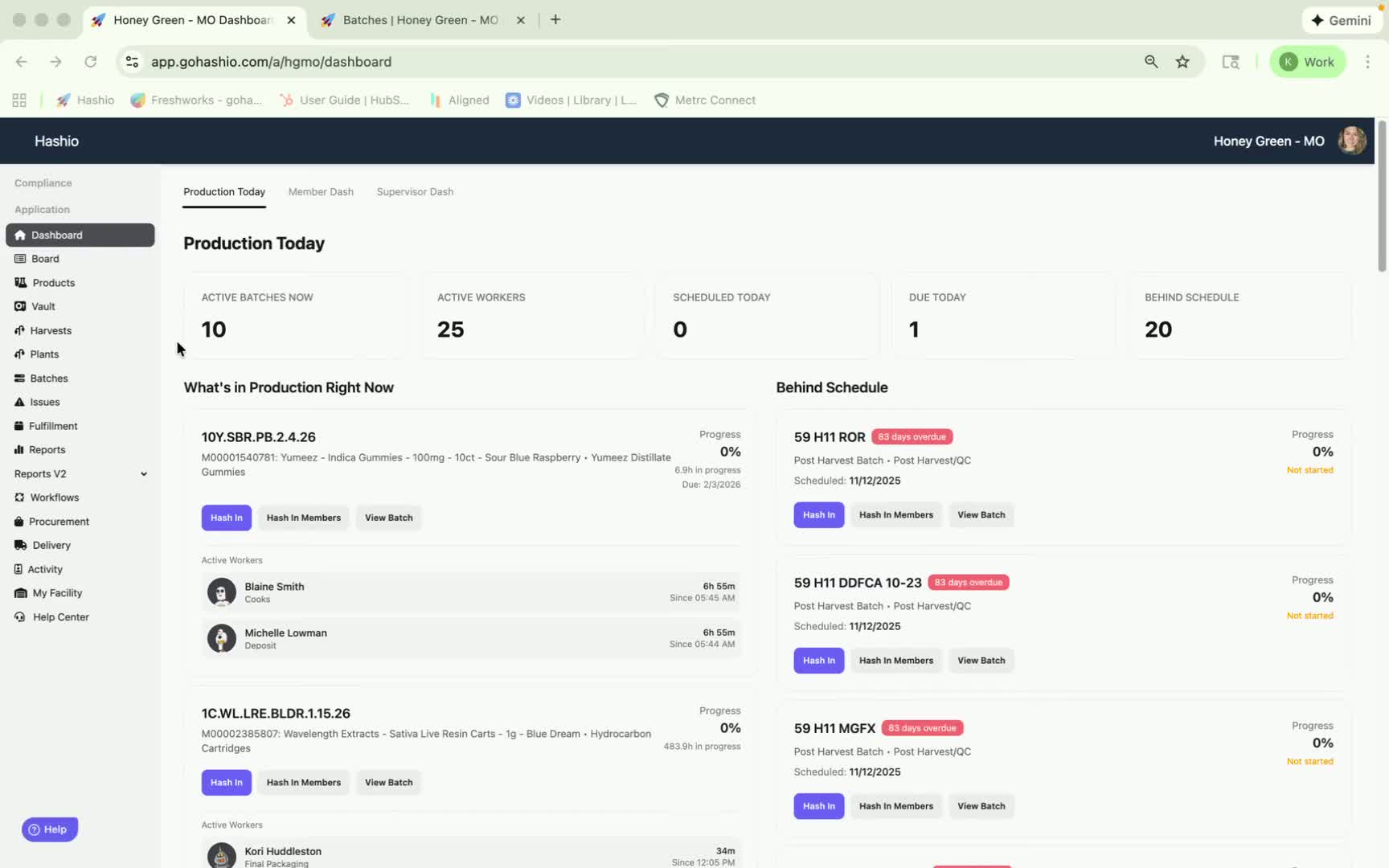
The dashboard displays:
Active batches currently in production.
Number of associates logged in.
Scheduled tasks for today.
Batches due today.
Batches that are behind schedule.
3. Understanding Batch Details 0:23
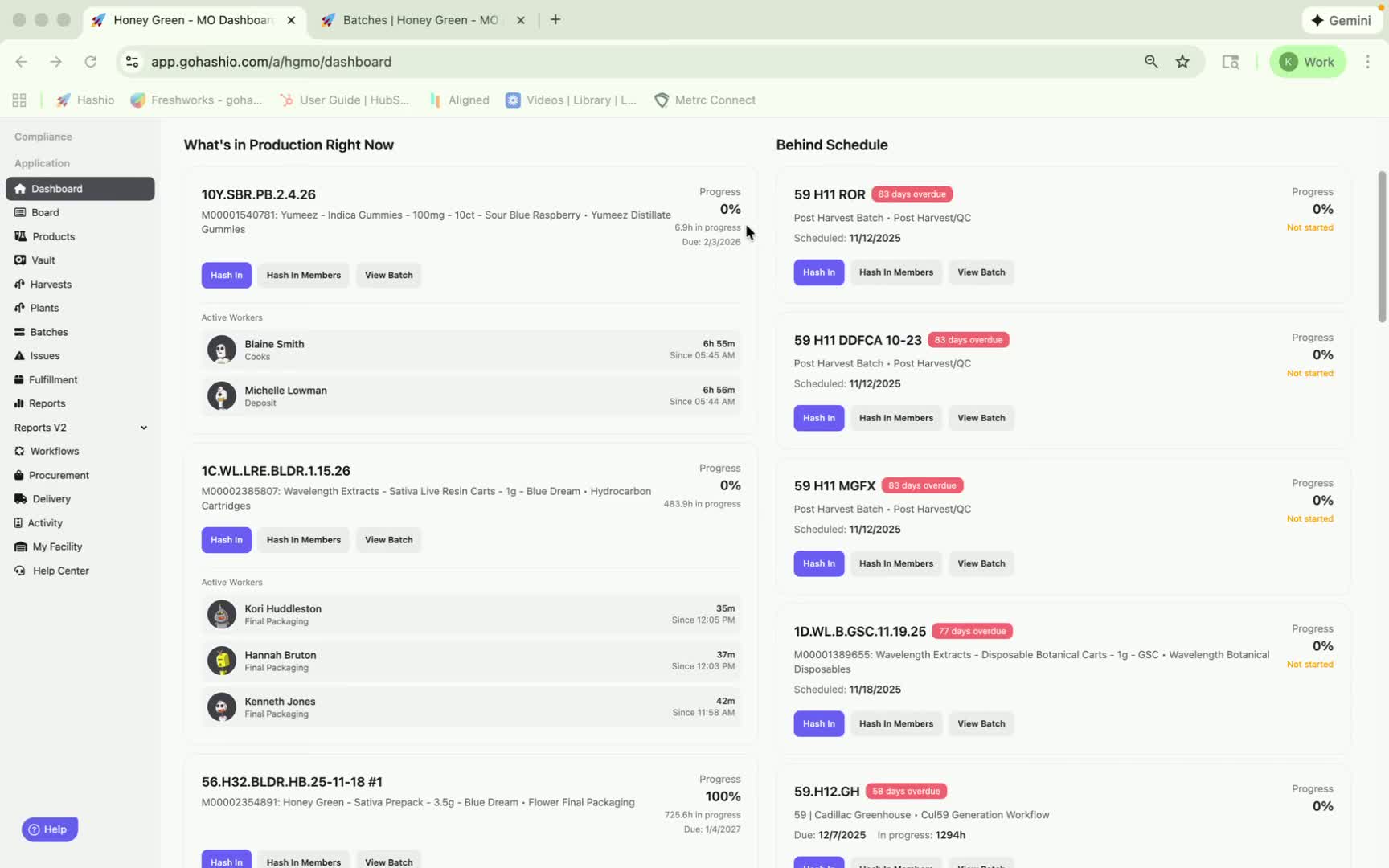
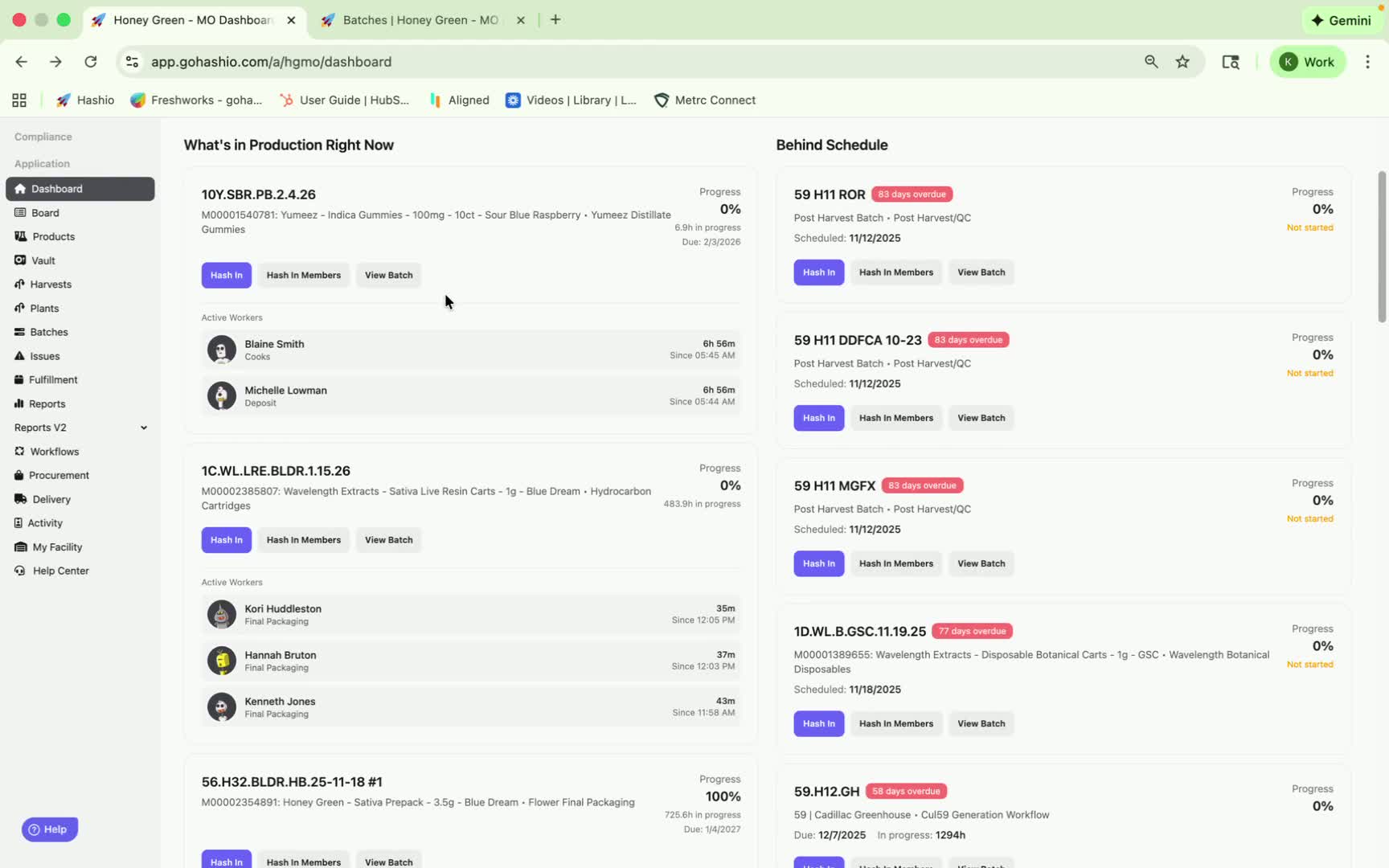
On the left-hand side, view batches that are actively in production with associates signed in :
Batch number.
Product name.
Progress of each batch, which increases as workflow steps are completed.
'Hours in Progress' shows the time elapsed since the batch was created.
The due date for each batch is also displayed.
On the right hand side, view batches that are behind schedule or past their due date with no associates active.
4. Managing Active Associates 0:47
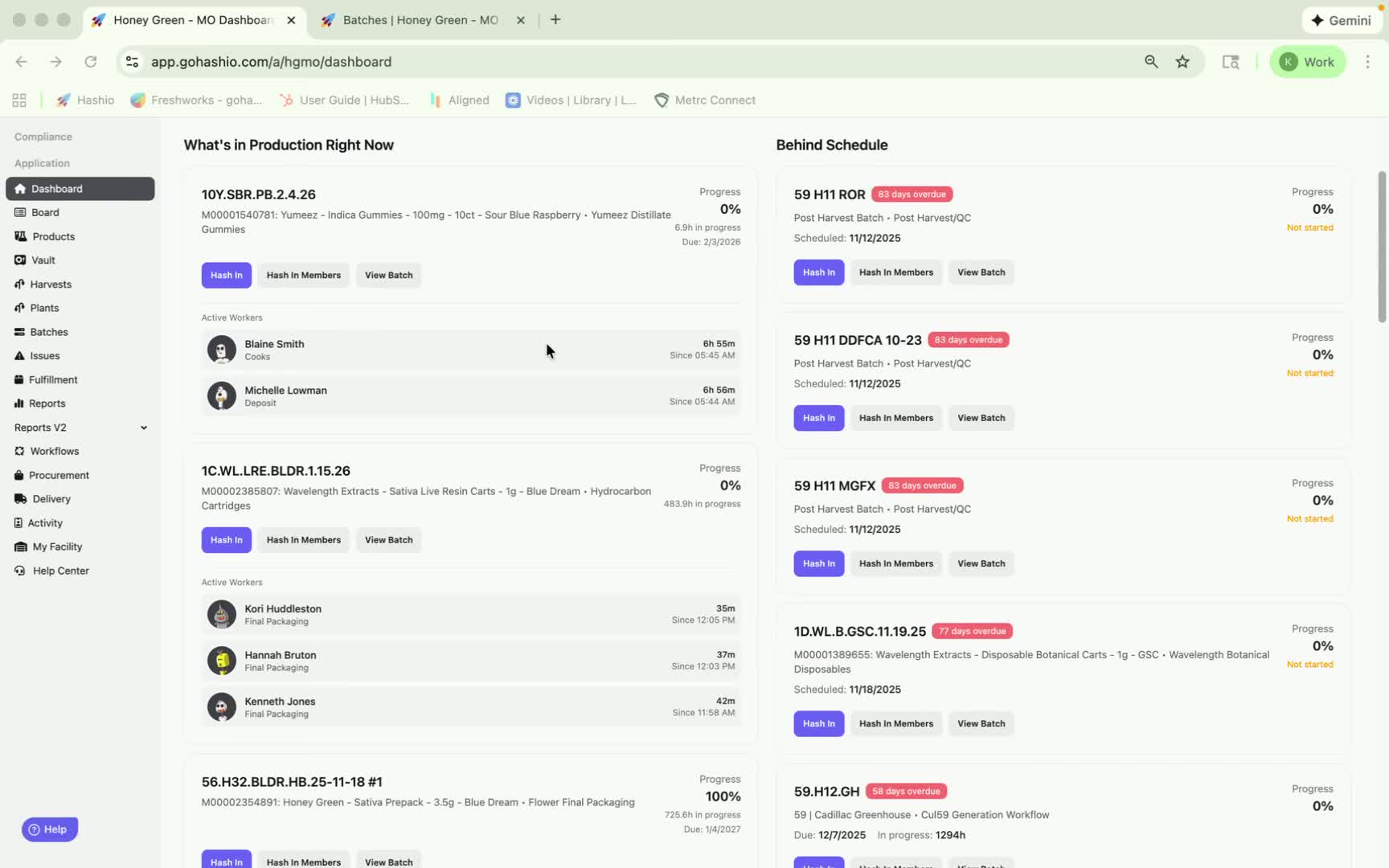
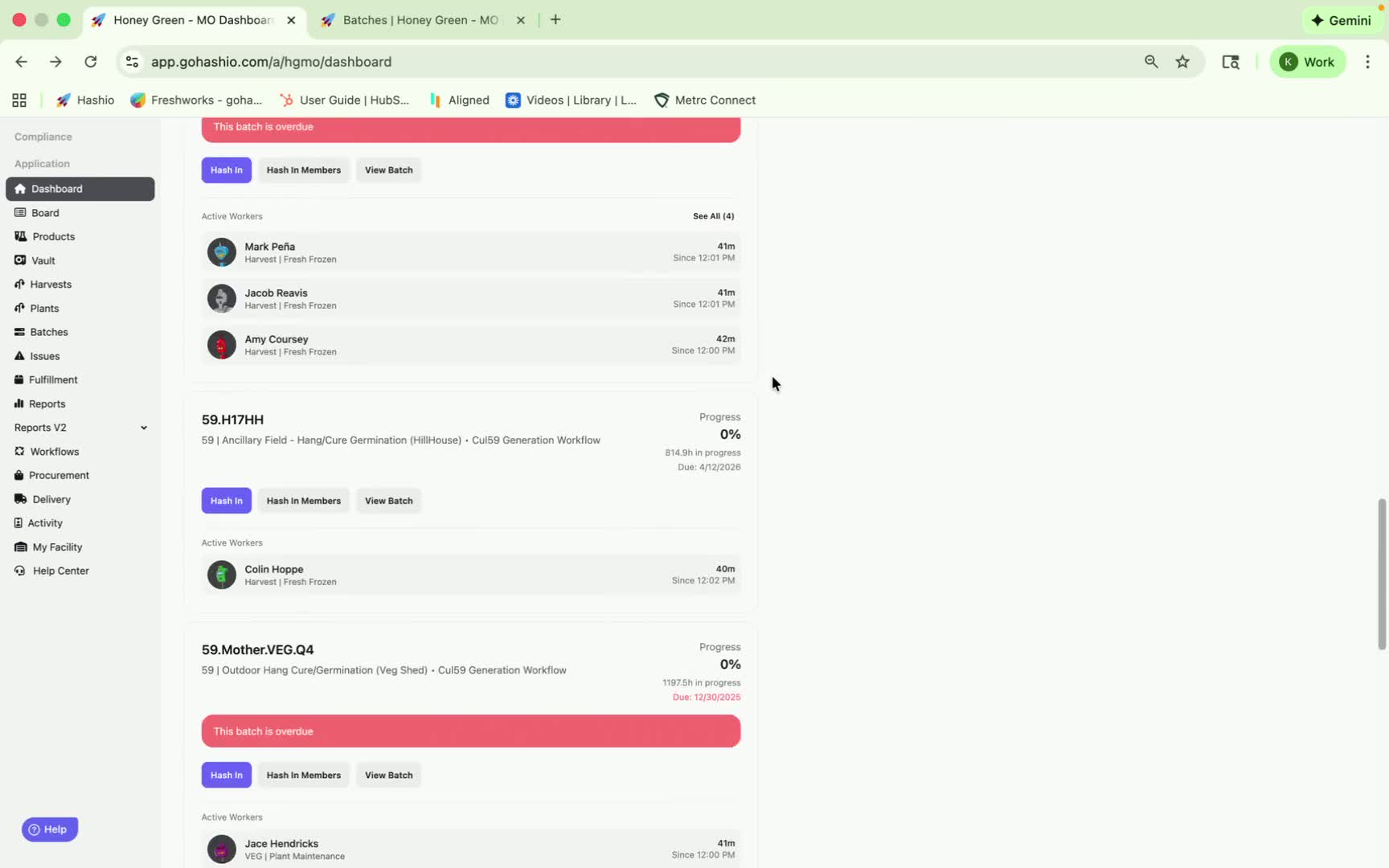
View active associates at the bottom:
See what steps they are logged into.
Duration of their login.
Time they logged in.
5. Logging In Associates 0:54
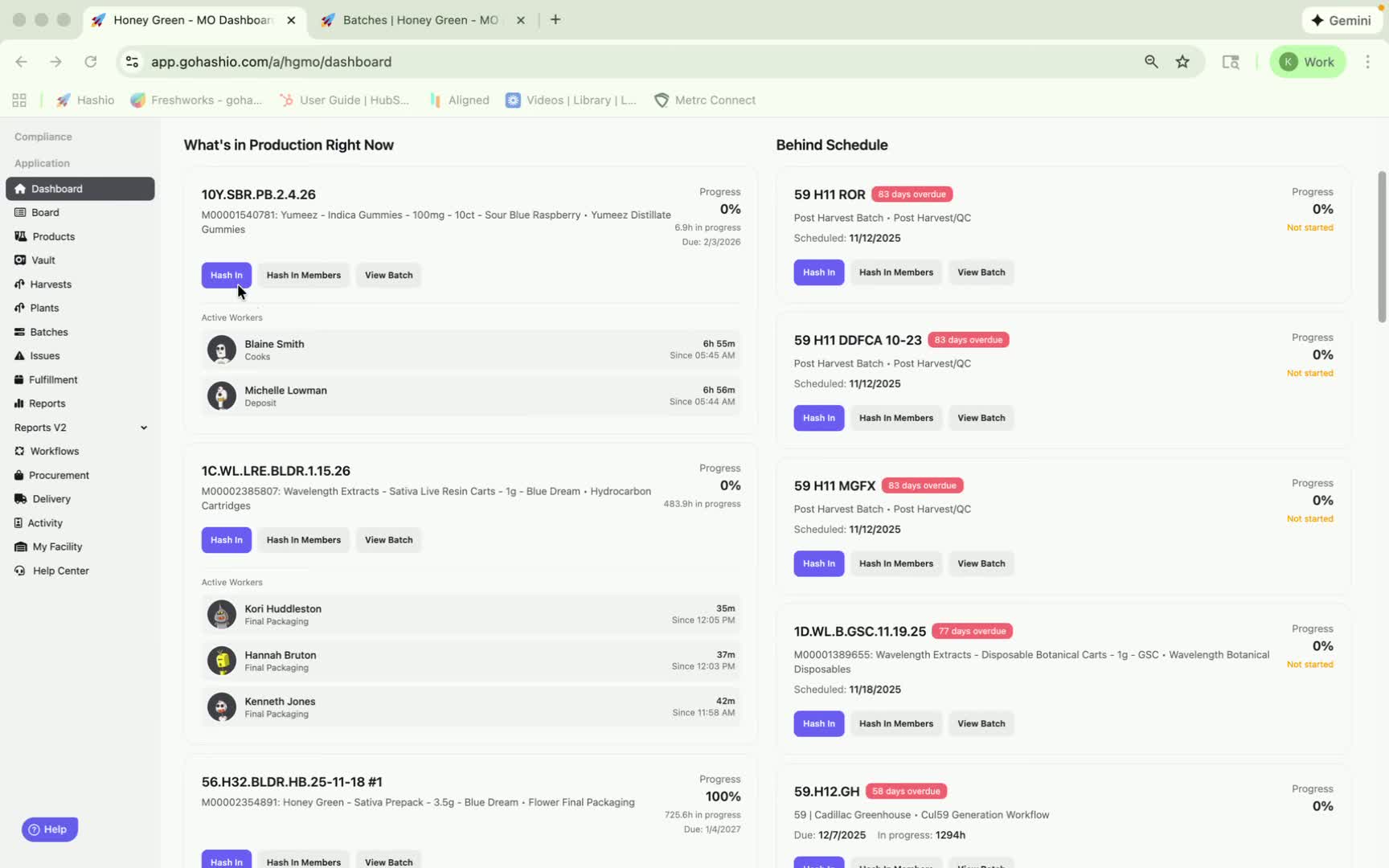
To log in yourself or others:
Select the batch.
Click 'Hash In' and select desired step.
For team members, select 'Hash In Members' and choose the members and which step to be logged in under.
6. Viewing Batch Snapshots 1:19
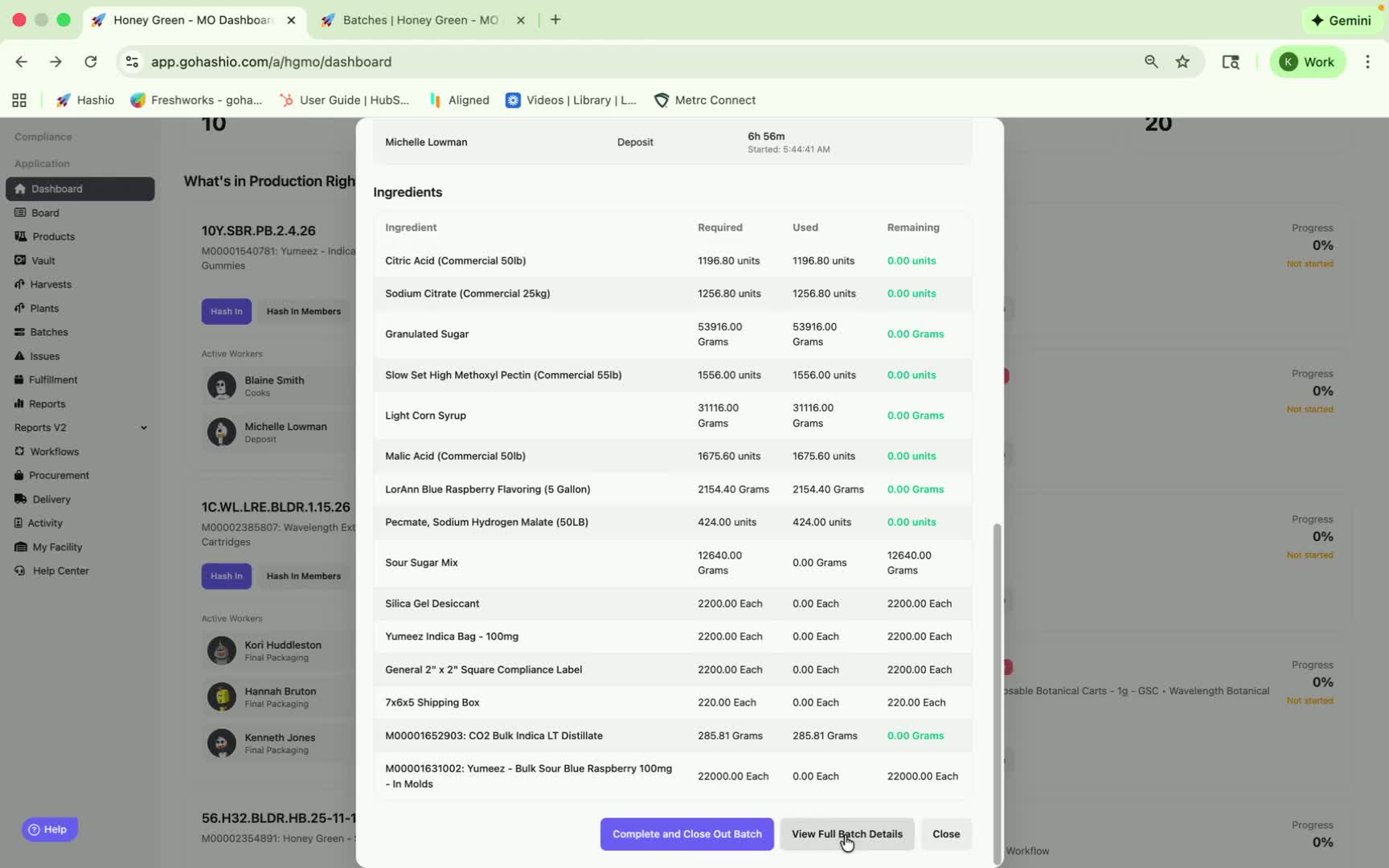
Click 'View Back' to see:
Batch details.
Steps for the batch.
Status and time logged by associates.
Required ingredients and their usage.
7. Accessing Full Batch Details 1:37
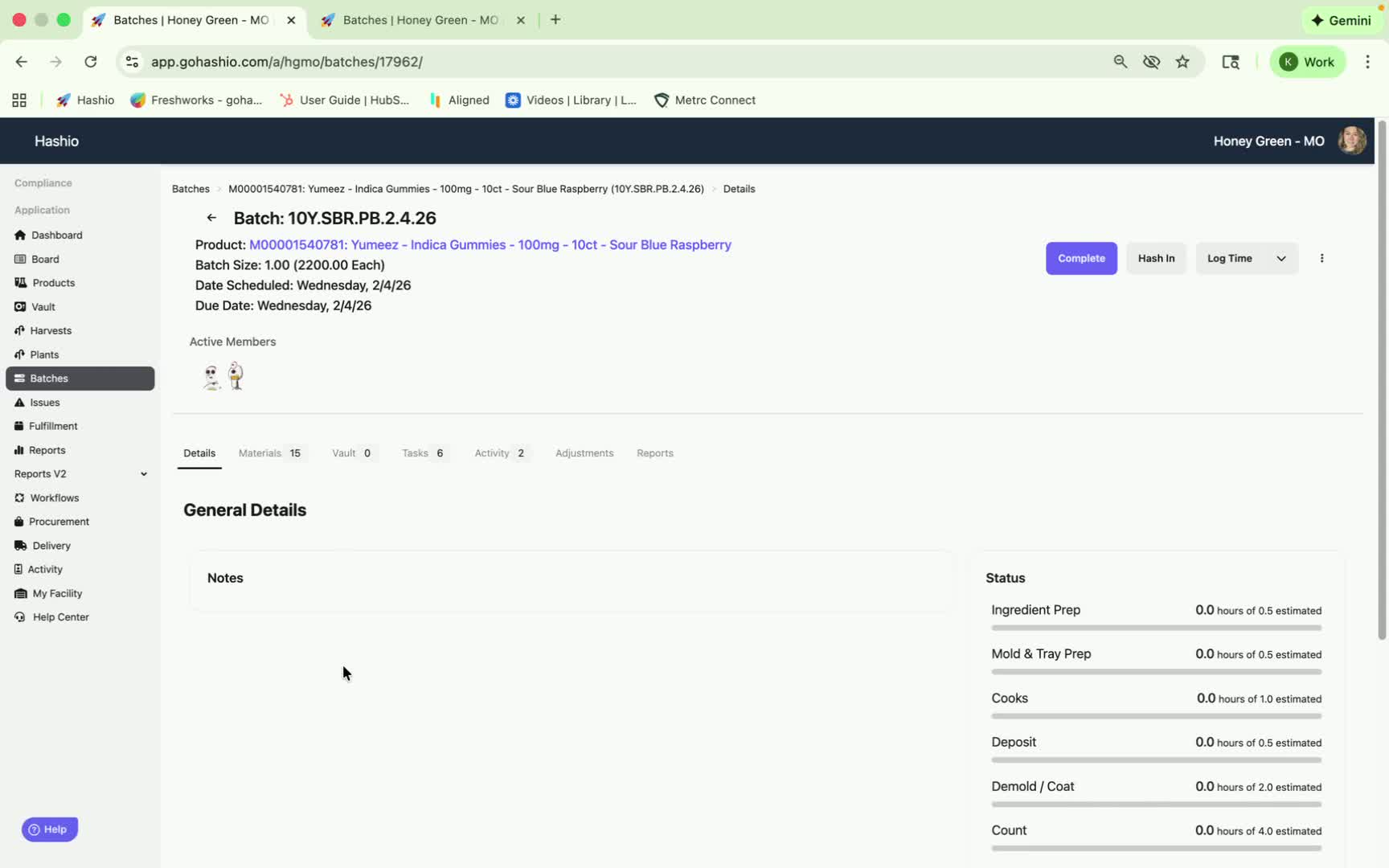
Click 'Full Batch' to view comprehensive batch information.
8. Closing Out a Batch 1:43
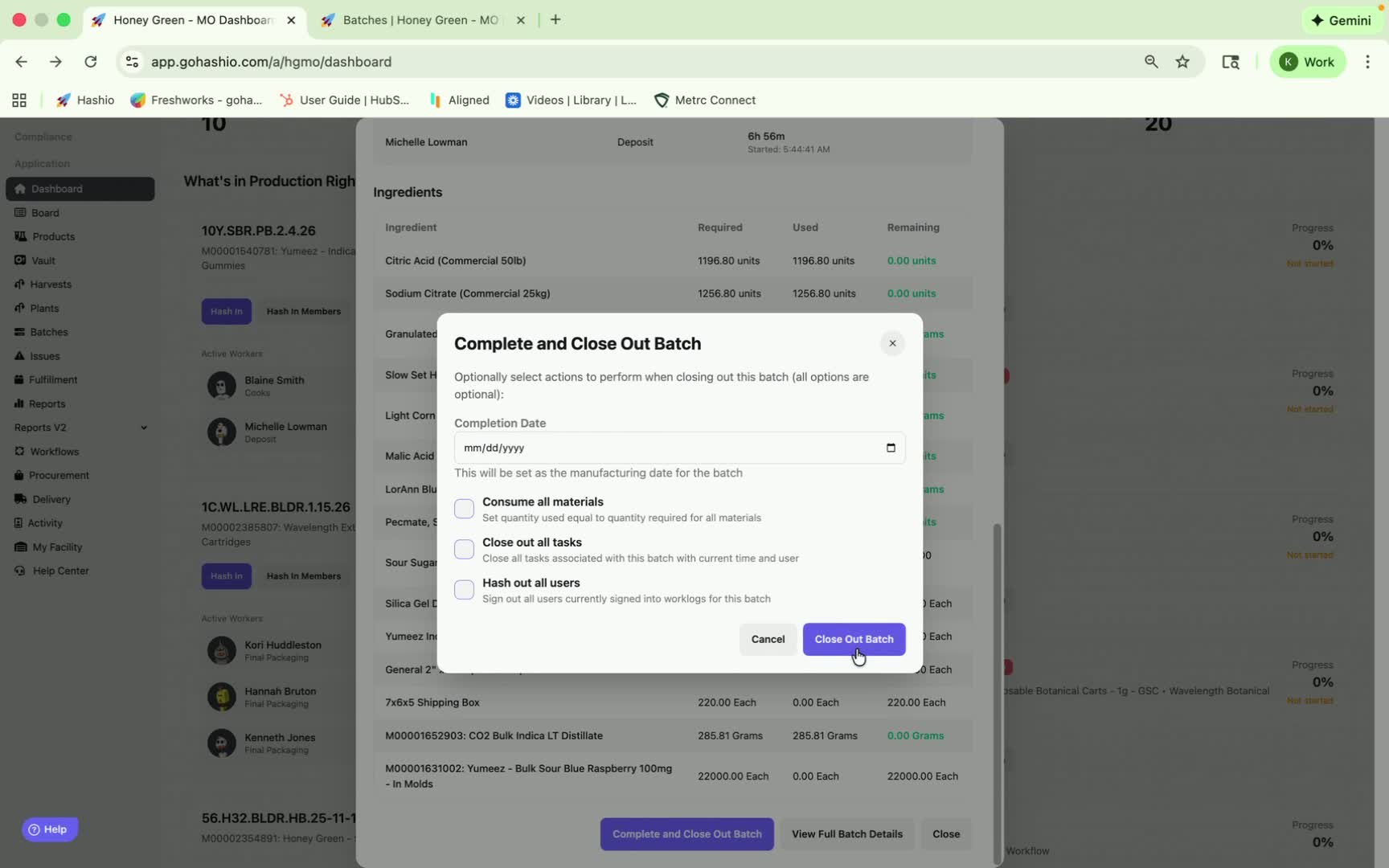
To close a batch from the dashboard:
Click 'Complete and Close Out Batch'.
Enter the completion date.
Use checkbox to ensure all materials are consumed, tasks are closed, and users are signed out.
If there are outputs to log, return to input those for individual team members before finalizing.
9. Reminder When Creating New Batches 2:16
When creating a new batch, input:
Scheduled date (when you plan to work on it).
Due date (when it needs to be completed).
These dates are crucial for tracking production.
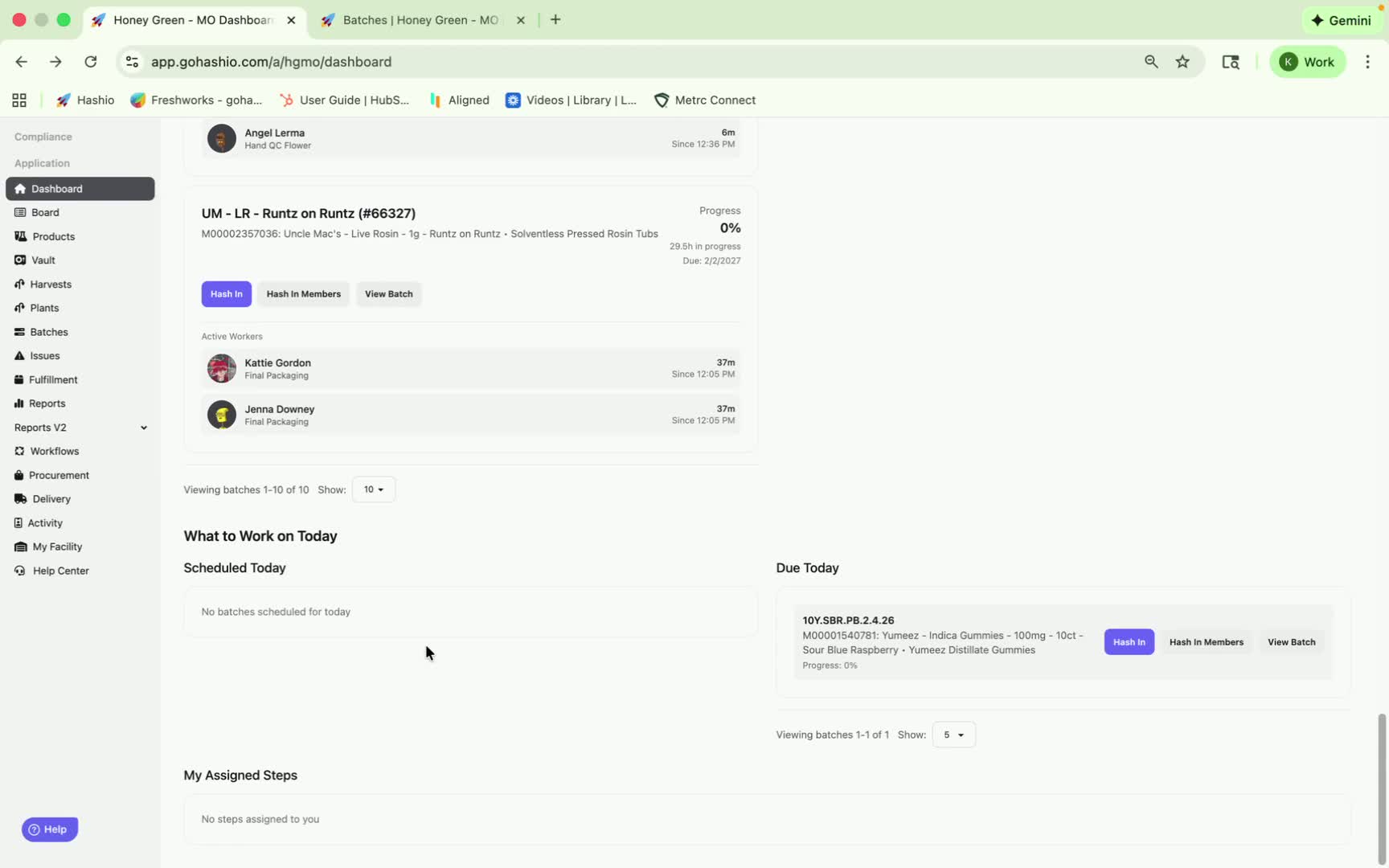
10. Daily Schedule Overview 2:52
At the bottom, see:
What is scheduled for today.
What is due today.
Any steps assigned to you.
11. Conclusion 3:01
This concludes the overview of the new production dashboard.
Link to Loom
https://loom.com/share/b3cb42c108414518b8000276d9b06190
Was this article helpful?
That’s Great!
Thank you for your feedback
Sorry! We couldn't be helpful
Thank you for your feedback
Feedback sent
We appreciate your effort and will try to fix the article